

The question that CS2 cheaters always ask is the same: is the software really up to date, does it support the latest systems, and what do I get for the money I pay? At Atom Premium, we answer this question not with words, but with updates. In the October update, we released more than 30 new features and fixes.
In this article, we’ll go over each new feature in detail, including what it does: Backtrack Chams, Steam Avatar ESP, new ESP font types, bomb and smoke timers, Profile Changer, and much more. It’s a long article, so you can jump directly to the section that interests you most from the table of contents below.
Contents
- Overview of the update
- Backtrack Chams: Show previous position
- New CS2 ESP features
- ESP font types and size settings
- Bombs, smoke, and C4 timers
- Aimbot and weapon improvements
- Inventory Changer and Profile Changer
- More comfortable menu
- Secure Mode (VACLive) has been expanded
- Why Atom Premium?
- Frequently Asked Questions
CS2 Cheats Overview of the October Update
First, the big picture. The following table lists the main topics of this update. Details are provided in the following sections.
| Section | Newcomers |
|---|---|
| Chams | Backtrack Chams (past position phantom) |
| ESP | Steam avatar, only visible when ESP, flag colors, distance flag, drag-and-drop preview, gradient box, corner box inner line |
| Font types | 3 new ESP fonts, with separate size settings for each ESP text |
| Bomb and C4 | Timer bomb ring, smoke radius indicator, smoke color, molotov area, C4 icon/text selection, C4 timer color |
| Weapons and aimbot | The game's own weapon icons, working auto-stop, Zeus compatible with anti-aim, and knife bot, FOV line option |
| Inventory and profile | Profile Changer tab, take skin with inspect link, edit and duplicate skin, set viewmodel position, automatic loadout |
| Menu | Scrollable and sliding checkboxes, language flags, redesigned watchlist, full keyboard list |
| Security | Safe Mode (VACLive) automatically limits more risky settings |
Backtrack Chams: See your opponent's previous position
Those who use Backtrack know that the logs are stored in the background, not in front of your eyes. But what if you could see where these logs are located?
Backtrack Chams do just that. The position on the opponent's backtrack is drawn like a ghost next to the player, so you can see clearly how far back your backtrack setting goes, and where the opponent moved from.
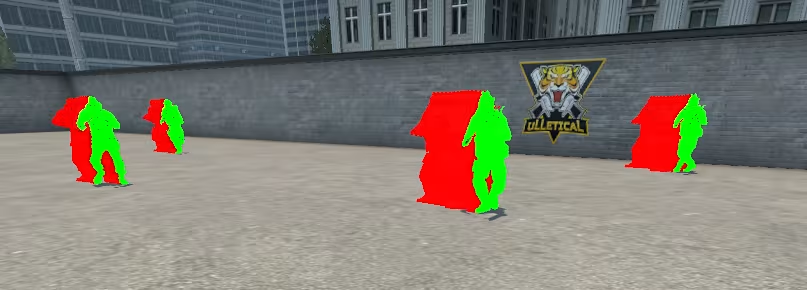
What can you do with Backtrack Chams?
- For the ghost, you can choose material and color.
- If you want, you can open the background layer and see the illusion with a separate color behind the walls.
- There are separate settings for enemies and teammates.
- If the opponent is stationary, the ghost won't be drawn, and your screen won't be unnecessarily cluttered. The ghost appears when the opponent moves noticeably and disappears when they return to their original position.
Visualizing the Backtrack settings eliminates the question "Am I using this correctly?" making it very convenient for both newbies and experienced users who want to fine-tune their settings.
New CS2 ESP features
ESP is the most widely used component of CS2 cheat software. This update brings both new features and a visual makeover to ESP.
ESP with Steam avatars
You can now add a Steam profile picture next to a player's name. It's a quick way to identify who's who, especially on crowded servers and when you're matched with friends on your friends list.
- Opens and closes as a separate option.
- Size is set with the slider.
- The default location is to the left of the name. In the preview window, you can drag and drop it to wherever you want.
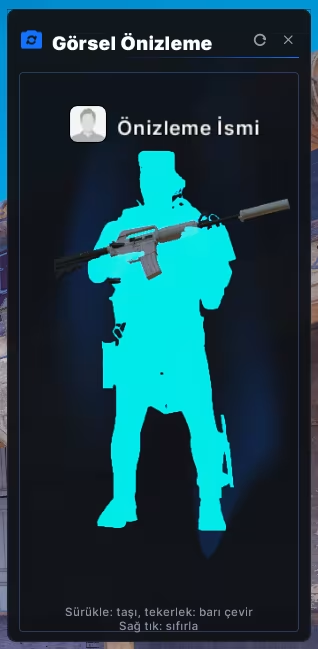
Only when visible, ESP
Would you like to know only the information of players you can actually see on screen? With the new Only Visible option, ESP is drawn only when the player is in your field of view. It is separate for enemy and teammate groups and is off by default. When turned on, all player ESP, including boxes, bars, names, avatars, weapons, flags, and skeletons, behave together. Chams are excluded from this option.
This also comes in handy when you want to simplify the screen or give it a more "legit" look.
Different colors for each flag
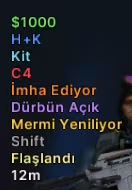
ESP flags (money, armor, defuse kit, C4, defusing, scope, reload, shift, flash, distance) now come with their own colors: money is green, armor is blue, C4 is red, and so on. You can change the colors of all the flags individually from the gear menu in the flag bar. Only the colors of the active flags are listed in the menu, so it doesn't look crowded.
The new Distance flag shows how far your opponent is from you.
Drag-and-Drop ESP Preview
You can now drag and drop items in the ESP preview window: names, weapons, health, armor and ammo bars, flags, and the Steam avatar. Rotating the mouse wheel on a bar makes it horizontal or vertical. A right-click or double-click returns an item to its default position, while a single "reset all" button restores everything to its original state.
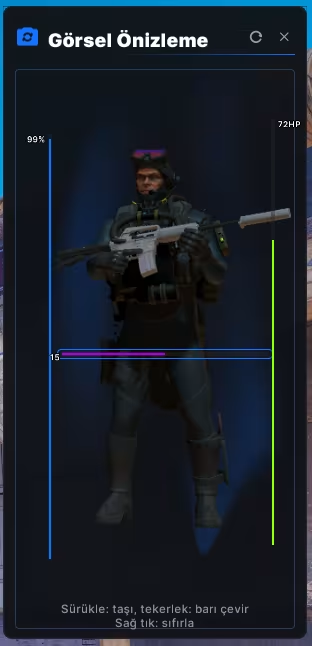
The locations you set are saved in your config.
Better boxes and lines
- Degrade box: You can add a second color to the box and create a smooth transition.
- Corner box: It now has a line on both the outside and inside, making it look more defined and stable.
- Line transparency: When you decrease the transparency of an object, the black line also becomes softer, proportionally.
- Health bar: If you want the color to change according to your health, it opens with a single click.
- Bar labels: You can open and close the numbers next to health, armor, and ammo bars separately.
ESP font types and size settings for each text
How your CS2 ESP looks is a matter of personal preference. This update gives you full control.
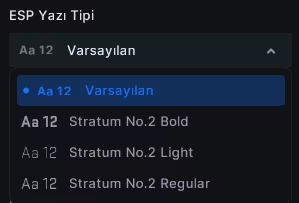
- New fonts: Stratum No.2 family includes Bold, Light, and Regular. There are a total of four options, along with the existing font. Each option is previewed with its own typeface in the font selection box.
- Single setting, all ESP: The selected font is applied to all player, weapon, C4, bomb, and guess text.
- Separate dimensions for each text: There are separate slider controls for name, weapon, flags, health, armor, and bullet texts, world weapon, bomb, C4, and bomb damage estimate texts.
- Simge size also grows: When you increase the text size, weapon and bomb icons also scale proportionally. The circle and icon in the bomb icon are scaled together.
Turkish characters (ğ, ş, ı, İ) and Cyrillic letters also appear correctly with these fonts.
Bombs, smoke, and C4 timers
Bombing in CS2 is an art. You also want to see the timing of this art.
Iconed and timed bomb ring
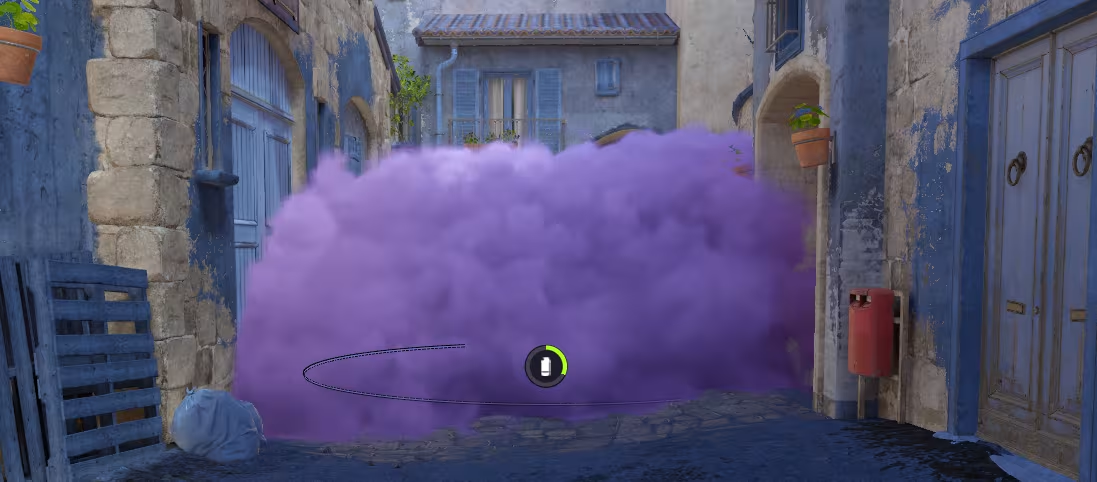
For the bomb indicator, you have three options: text, an icon, or an icon and a time bar. The bar indicates the remaining time for airborne bombs (hand grenades, flash grenades, molotov cocktails). For smoke grenades and burning molotov cocktails, the bar indicates the remaining time. The color of the bar varies from red to green depending on the time remaining, and the bar fades out smoothly when the bomb explodes or goes out.
Smoke radius indicator and smoke color
You can now see exactly how far Smoke extends. In addition, changing the smoke color is now offered as a separate feature. In the menu, "Smoke Bomb Area Indicator" and "Smoke Bomb Color Changer" are listed as two separate options.
Molotov's Field
With the "Molotov Cocktail/Yanan Area Marker", the area covered by the burning molotov cocktail is drawn. The default transparency has been reduced to 25%, so the ground remains visible, but the hazardous area is clearly indicated.
C4 indicator
For the board bomb, you can now choose icons or text. The color of the progress bar can also be adjusted. When the box is selected, the label is placed on top of the box with a clean margin.
Aimbot and weapon improvements
The game's own weapon icons
Weapon icons are now loaded from the game's own files, as sharp vector images. In the player ESP, world weapons, and bomb indicators, you can select icons instead of text. The icons are visible until they are ready, so the screen never goes blank.
Auto stop has been improved
In Rage's aimbot, when a target is found but the hit chance is not yet sufficient, the character stops and aims, and fires when the hit chance is sufficient. All three modes of slow walking, fast stopping, and full stop work in this way.
Zeus and the knife boot are compatible with anti-aim
With Anti-aim enabled, the Zeus and Blade automatically fire in the direction your crosshair is pointing at the moment of the shot. You don't need to turn Anti-aim off.
Small but useful additions
- Aimbot FOV window: You can turn the outline on and off.
- Key list: Every feature you assign a key to in the free camera, third-person view, and menu is now visible in the list.
- Radar: When you turn off the option to show radar tracks, the game returns to its original state.
Inventory Changer and Profile Changer
Atom Premium is not just an in-game software. There are also significant improvements in CS2 skin changer.
New Profile Changer tab
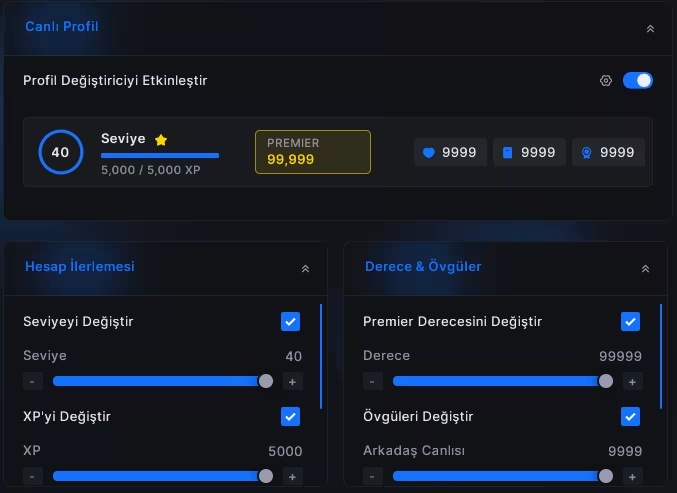
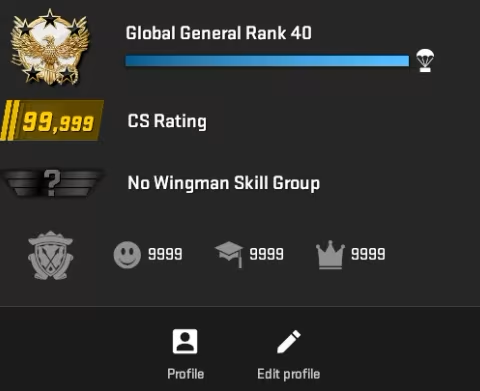
The profile is now in its own tab. You can change how your CS2 profile looks on your own screen:
- Status, XP, and Prestige
- Premier rating
- Favors (friendly, educational, leader)
- Elevated status
- Predefined settings: Legit, Pro, Maxed, and one-click reset
With live preview, you can see your changes instantly.
Inspect link to remove skin
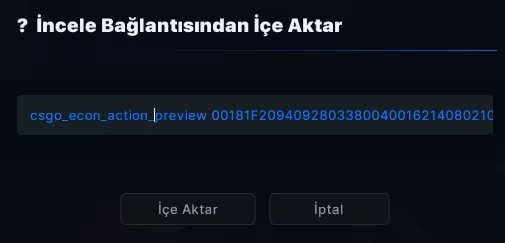
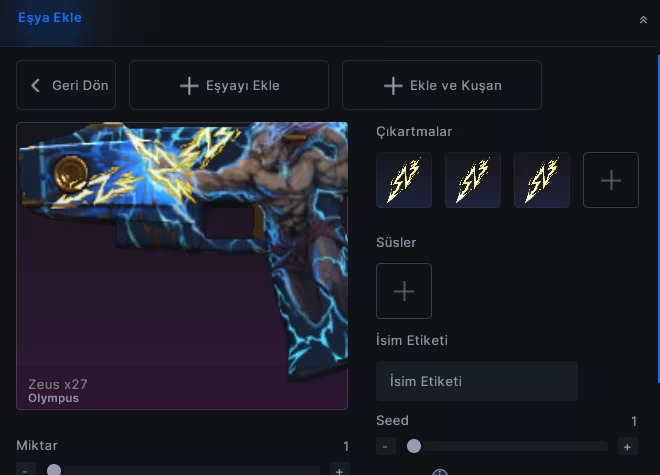
Paste the inspect link for a skin you like, click once to add it to your inventory.
Edit and duplicate skins
You can right-click on a skin in the inventory to edit or duplicate it. It's now much faster to try out different variations of the same skin.
The loadout key automatically opens
If you have at least one skin in your inventory, the loadout lock will automatically open. There is no longer a separate setting in the menu, making it one step easier to use.
Viewmodel location
You can adjust the position of your weapon on the screen independently along the X, Y, and Z axes. You can reset it with a single button. Very handy for those looking for a new CS2 viewmodel setting.
Chance box weights
Chance Box weight settings now include a button to "reset all to 1.0x".
More convenient menu
A good CS2 cheat menu is measured not only by its features, but also by its ease of use. In this update, we have polished the interface from top to bottom.
- Selection boxes: Long lists now scroll smoothly with the mouse wheel. When your selections don't fit inside the box, the box smoothly scrolls (marquee) without clipping the text. The top and bottom margins are equalized.
- Language selection: Each language has a flag next to it.
- Watchlist: It's smaller and sleeker. It fades away when no one is watching, pops up when someone starts watching, and each viewer is listed with their Steam avatar.
- Settings menus: The settings windows that open when you click the gear icon are animated and organized.
- Glow effects: Fixes related to player glow.
Safe Mode (VACLive) has been expanded
With Secure Mode (VACLive) enabled in Atom Premium, the software limits the settings we consider risky on your behalf. With this update, two additional settings have been added to the protection:
- Bunny hop acceleration is disabled.
- Backtrack is reduced to no more than 4 ticks.
The mode also limited settings like smoothing, recoil control, anti-aim, silent aimbot, rage aimbot, and bunny hop. When you exceed a setting limit, you'll get a clear notification, so you know why things have changed.
Why Atom Premium?
When buying CS2 cheats, what you should look at is not the length of the feature list, but whether that list is up-to-date. Here are our reasons for choosing Atom Premium:
- We've been at your service since 2018.
- Constant updates: The more than 30 innovations in this article are the result of approximately one week of work.
- Fast compatibility with new CS2 releases: The latest version of the software is released as soon as the game is updated. Users affected by the update are automatically assigned time compensation.
- Support for new systems from day one: Remember the CS2 pet system.
- Both Legit and Rage: Play naturally with legit aim and aggressively with rage, both in the same menu.
- Support team: If you encounter any issues, you can reach us at our support page.
You can find the full list of features on the CS2 Cheats page.
Frequently Asked Questions
How do I use the latest version of Atom Premium?
All you need to do is make sure you are using the latest version of Atom Premium. The update method may vary depending on the version you are using and your system. If you encounter any issues, our support team is here to help.
Does Backtrack Chams work?
Draws the opponent's position on the backtrack as a ghost. Allows you to adjust your backtrack settings visually.
When "Only When Visible" is enabled, can I not see the back of the wall?
No, when this option is enabled, ESP only draws players in your field of view. If you want to see behind the walls, leave the option off. It is off by default.
Does the Profile Changer appear on other people's screens?
Yes, other users in your lobby can see this feature.
Which package should I choose when buying CS2 cheats?
For in-game features, you can check out the CS2 Cheat Pack, and if you're only interested in skins and inventory, you can check out the CS2 Skin Changer Pack.
What should I do if I have problems after the update?
First, make sure you are using the latest version of Atom Premium. If the problem persists, please include the version you were using when you reported the issue, when the problem started, and any error messages you received to help us troubleshoot it more quickly.
Buy CS2 Cheats: Try out the new features with Atom Premium!
With Backtrack Chams, view your history, customize your ESP to your liking, memorize bomb timings, and organize your profile and inventory however you want. All in one menu, in one language.
Whatever comes to CS2, we bring to the software.
Buy CS2 Cheats and discover its new features right away. You can check out our FAQ page for answers to your questions, or contact our support team.


Comments
0 comment